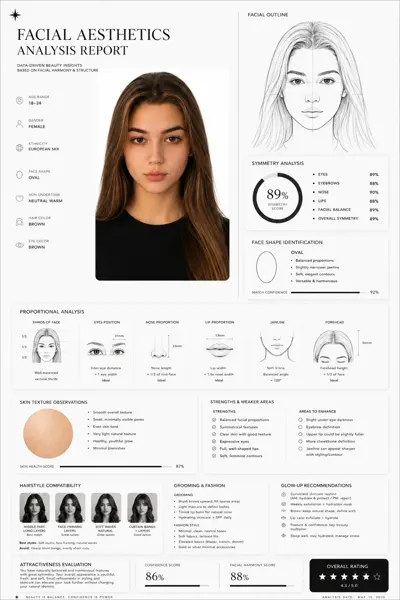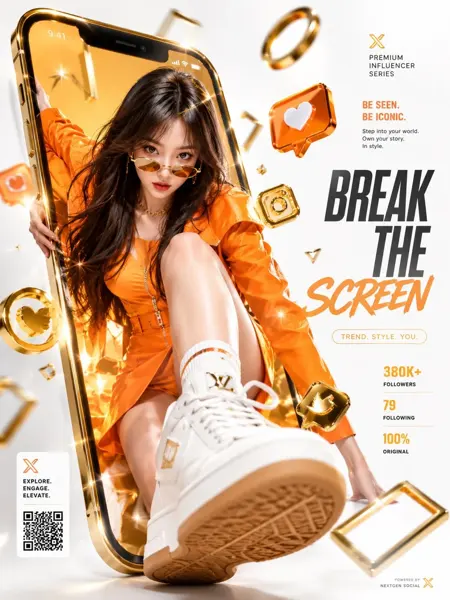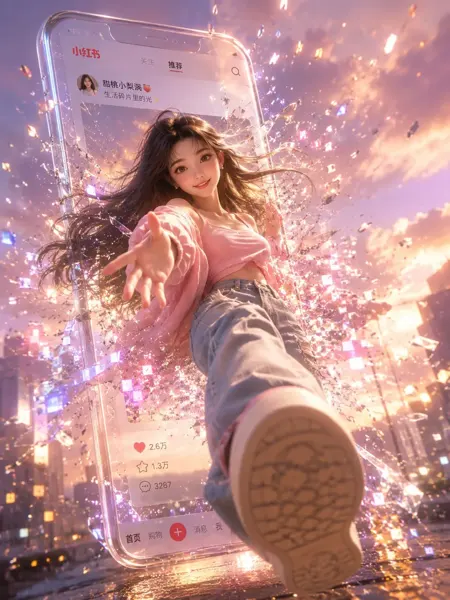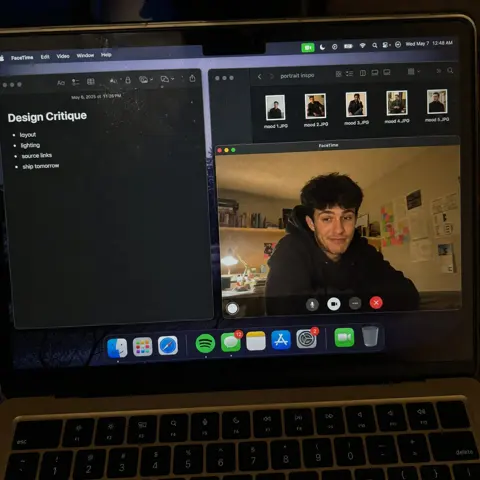
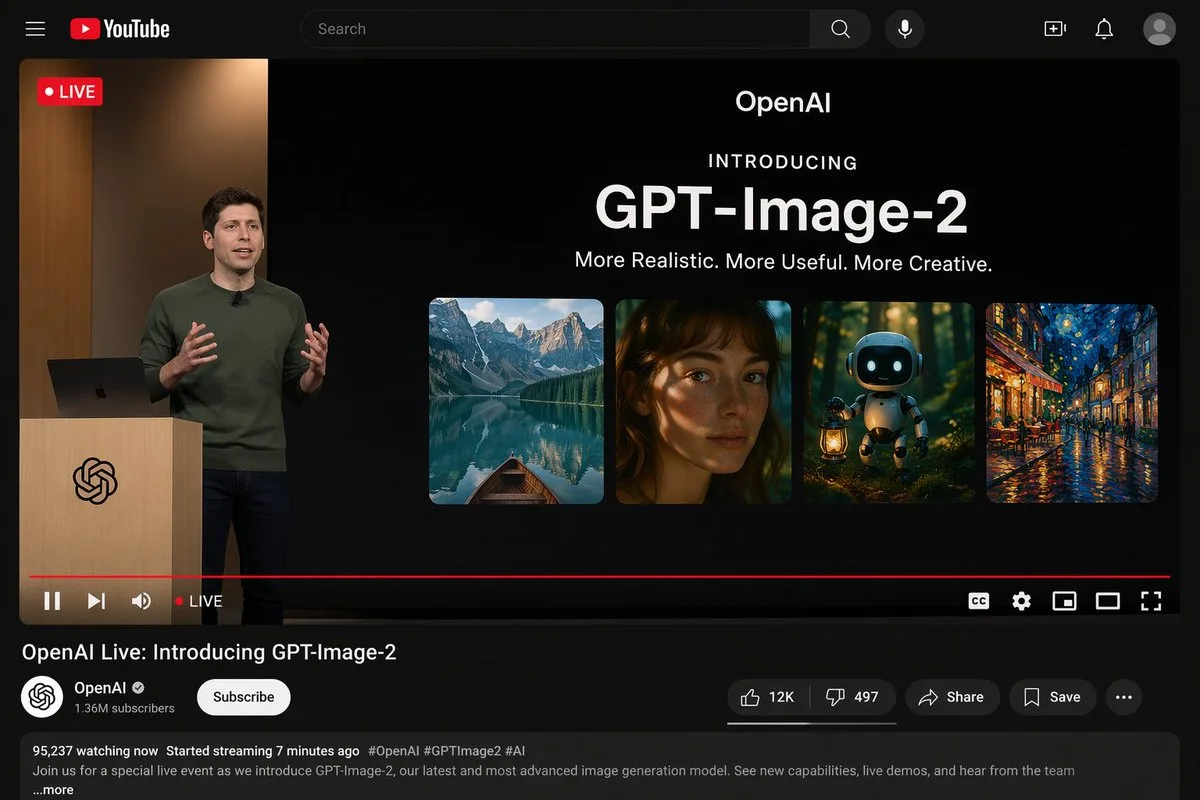
クリックで拡大表示 · 作例の参考イメージ
作例の出典
@tehno_maniak ↗ · 作例 #107
オリジナルの作例内容を保持しています。生成結果はモデルのバージョン、参照画像、パラメータによって左右されます。本サイトでは個別の完全な再現を保証するものではありません。
UI・インターフェース / PROMPT #107
アプリUIモックアップ · #107
画像を確認してからプロンプトをコピーしてください。プレースホルダーがある場合は、下部で内容を書き換えることができます。
01 / カスタマイズ
02 / プロンプト全文 · 原文
{"type": "YouTube desktop dark mode UI mockup", "header": {"logo": "YouTube", "search_bar": "Search", "icons_count": 5, "icons": ["search", "mic", "create", "notifications", "profile"]}, "video_player": {"top_left_badge": "LIVE", "left_side": {"subject": "{argument name=\"presenter description\" default=\"man in green sweater at wooden podium\"}", "podium_logo": "OpenAI"}, "right_side_presentation": {"text_elements": ["OpenAI", "INTRODUCING", "{argument name=\"product name\" default=\"GPT-Image-2\"}", "{argument name=\"tagline\" default=\"More Realistic. More Useful. More Creative.\"}"], "sample_images_count": 4, "sample_images": ["mountain lake with boat", "woman portrait with dappled light", "cute robot with lantern in forest", "starry night cafe painting"]}, "bottom_controls_count": 10, "bottom_controls": ["pause", "next", "volume", "LIVE", "red progress bar", "CC", "settings", "miniplayer", "theater mode", "fullscreen"]}, "video_details": {"title": "{argument name=\"video title\" default=\"OpenAI Live: Introducing GPT-Image-2\"}", "channel": {"name": "{argument name=\"channel name\" default=\"OpenAI\"}", "verified": true, "subscribers": "1.36M", "button": "Subscribe"}, "action_buttons_count": 5, "action_buttons": ["Like 12K", "Dislike 497", "Share", "Save", "More"], "description_box": {"stats": "95,237 watching now Started streaming 7 minutes ago", "tags": "#OpenAI #GPTImage2 #AI", "text": "Join us for a special live event as we introduce GPT-Image-2, our latest and most advanced image generation model. See new capabilities, live demos, and hear from the team ...more"}}}お使いの画像生成ツールに貼り付けてご使用ください。本サイトはプロンプトの閲覧・編集ツールであり、画像の直接生成は行いません。
03 / 生成前のチェック
- プレースホルダーを具体的な内容に置き換え、参照画像が必要か確認します。
- 文字を含む場合はテキストを確定し、生成後に一文字ずつ確認します。
- 被写体、光、構図は一度に一箇所ずつ調整すると、効果を比較しやすくなります。
関連するインスピレーション
UI・インターフェースの他の作例