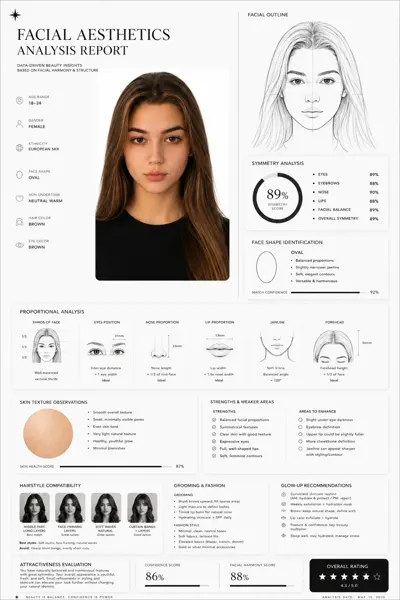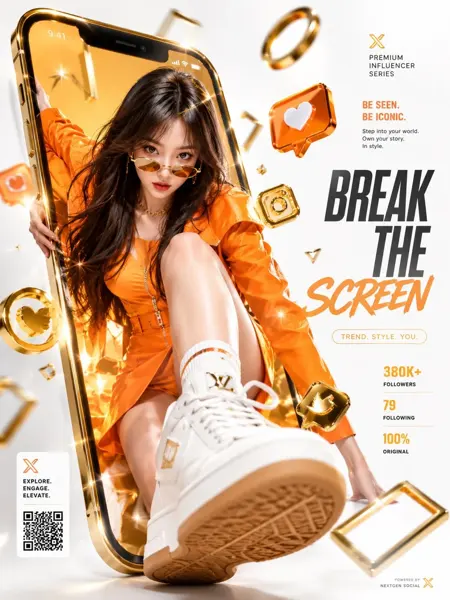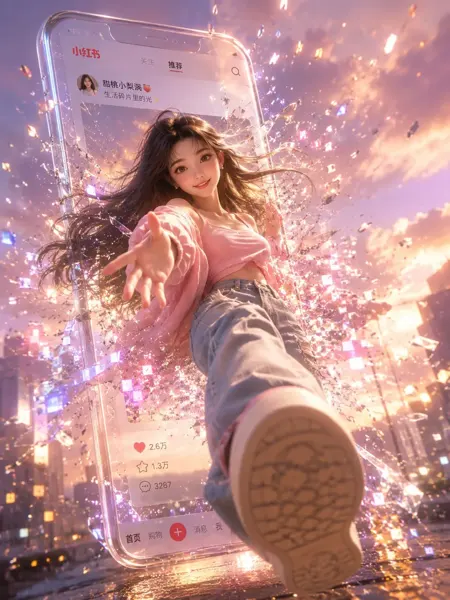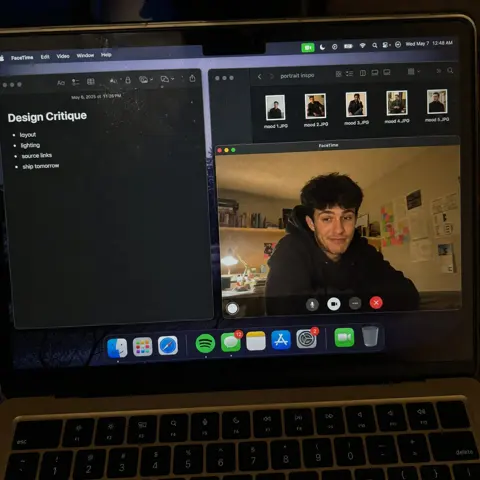
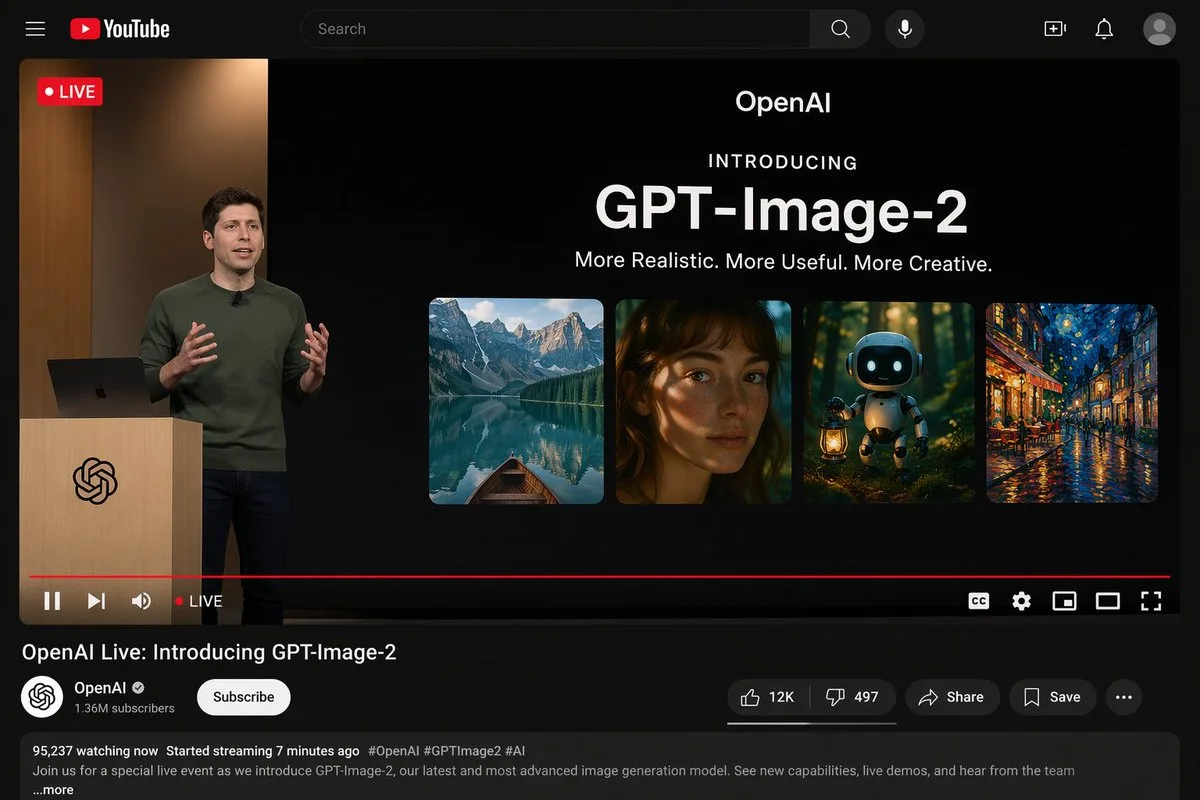
클릭하여 전체 이미지 보기 · 원본 사례 참조용
사례 출처
@tehno_maniak ↗ · 사례 #107
원본 사례 내용을 유지합니다. 생성 결과는 모델 버전, 참조 이미지 및 매개변수에 따라 달라질 수 있으며, 본 사이트에서 개별 검증을 진행하지 않아 동일한 결과의 재현을 보장하지 않습니다.
UI 및 인터페이스 / PROMPT #107
앱 인터페이스 목업 · #107
먼저 이미지를 확인한 뒤 원본 프롬프트를 복사하세요. 치환 문구가 있는 경우 아래에서 원하는 내용으로 변경할 수 있습니다.
01 / 나만의 버전 설정
02 / 전체 프롬프트 · 원문
{"type": "YouTube desktop dark mode UI mockup", "header": {"logo": "YouTube", "search_bar": "Search", "icons_count": 5, "icons": ["search", "mic", "create", "notifications", "profile"]}, "video_player": {"top_left_badge": "LIVE", "left_side": {"subject": "{argument name=\"presenter description\" default=\"man in green sweater at wooden podium\"}", "podium_logo": "OpenAI"}, "right_side_presentation": {"text_elements": ["OpenAI", "INTRODUCING", "{argument name=\"product name\" default=\"GPT-Image-2\"}", "{argument name=\"tagline\" default=\"More Realistic. More Useful. More Creative.\"}"], "sample_images_count": 4, "sample_images": ["mountain lake with boat", "woman portrait with dappled light", "cute robot with lantern in forest", "starry night cafe painting"]}, "bottom_controls_count": 10, "bottom_controls": ["pause", "next", "volume", "LIVE", "red progress bar", "CC", "settings", "miniplayer", "theater mode", "fullscreen"]}, "video_details": {"title": "{argument name=\"video title\" default=\"OpenAI Live: Introducing GPT-Image-2\"}", "channel": {"name": "{argument name=\"channel name\" default=\"OpenAI\"}", "verified": true, "subscribers": "1.36M", "button": "Subscribe"}, "action_buttons_count": 5, "action_buttons": ["Like 12K", "Dislike 497", "Share", "Save", "More"], "description_box": {"stats": "95,237 watching now Started streaming 7 minutes ago", "tags": "#OpenAI #GPTImage2 #AI", "text": "Join us for a special live event as we introduce GPT-Image-2, our latest and most advanced image generation model. See new capabilities, live demos, and hear from the team ...more"}}}사용하시는 이미지 생성 도구에 붙여넣어 사용하세요. 본 사이트는 프롬프트 탐색 및 편집 기능만 제공하며 직접 이미지를 생성하지 않습니다.
03 / 생성 전 체크리스트
- 치환 문구를 구체적인 내용으로 바꾸고, 참조 이미지가 필요한지 확인하세요.
- 텍스트가 포함된 경우 원하는 문구를 명확히 지정하고, 생성 후 글자를 꼼꼼히 확인하세요.
- 효과를 쉽게 비교할 수 있도록 피사체, 조명, 구도 중 한 번에 하나씩만 수정하세요.
관련 영감 더 둘러보기
더 많은 UI 및 인터페이스 사례