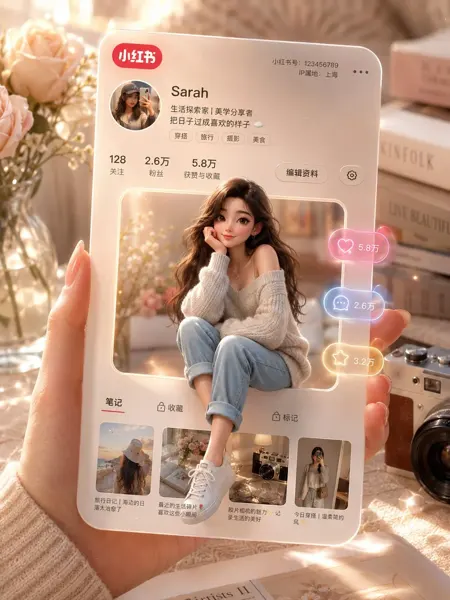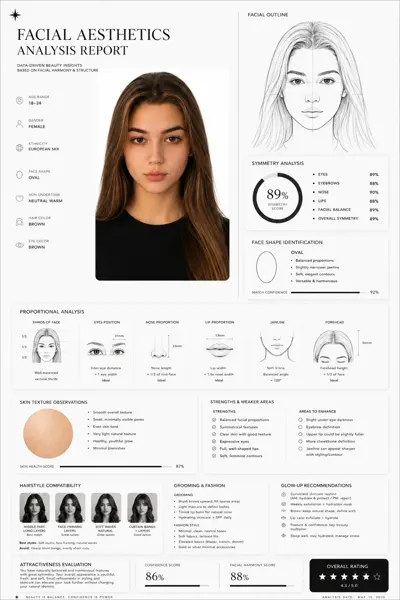
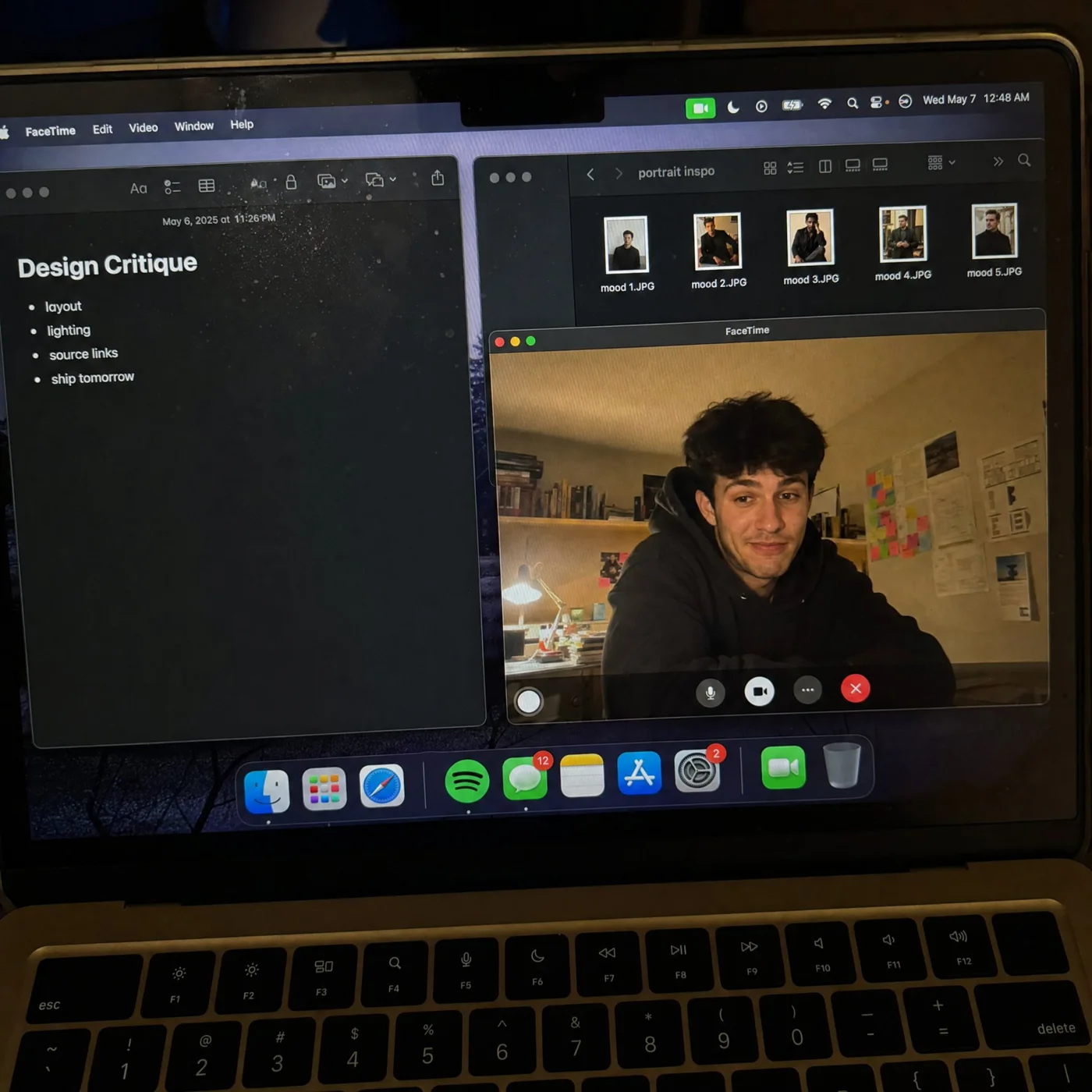
Click to view full image · Reference sample
Source
@kaanakz ↗ · Case #440
Original prompt preserved. Results vary depending on model version, reference image, and parameters; identical outputs are not guaranteed.
UI & Interfaces / PROMPT #440
Phone Photo of FaceTime Work Screen
Review the image, then copy the prompt. If placeholders are present, customize them below.
01 / Customize your version
No placeholders detected. You can freely adjust the subject, color palette, text, and aspect ratio after copying.
02 / Full Prompt · Original
Create a raw smartphone photo of a laptop screen, not a screenshot. Aspect ratio 3:4, high-angle downward POV from someone standing over a desk at night. The laptop display fills most of the frame, with a narrow strip of black keyboard and trackpad visible at the bottom. Strong realism: visible RGB subpixel grid, subtle moire bands, small dust specks, faint fingerprints, uneven glass reflections, handheld phone noise, slight perspective skew, no studio polish. macOS dark mode. Background app: Apple Notes with a late-night study note titled "Design Critique" and short visible bullets: "layout", "lighting", "source links", "ship tomorrow". Foreground app: FaceTime live preview window floating lower-right, showing a fictional adult man in his 20s sitting at a cluttered desk, hoodie, tired but amused expression, warm desk lamp behind him, books and sticky notes in the room. A second small Finder window with image thumbnails is partly visible behind it. Make it feel like an accidental real phone photo of a working laptop screen. No real-person likeness, no beauty filter, no perfect UI, no screenshot, no watermark, no cartoon, no 3D render.
Copy into your preferred AI image generator. Prompt Atelier provides prompt browsing and editing, but does not generate images directly.
03 / Pre-generation checklist
- Replace placeholders with specific details, and check whether reference images are needed.
- Specify exact wording for text elements, and proofread carefully after generation.
- Adjust only one element at a time—subject, lighting, or composition—to compare results easily.
Explore related inspiration
More in UI & Interfaces